Alerting & Integrations
Connect UptimeHunt to notification channels including Slack, Discord, Email, Webhook, Pushover, and more. Configure alert delivery for incidents.
Integrations
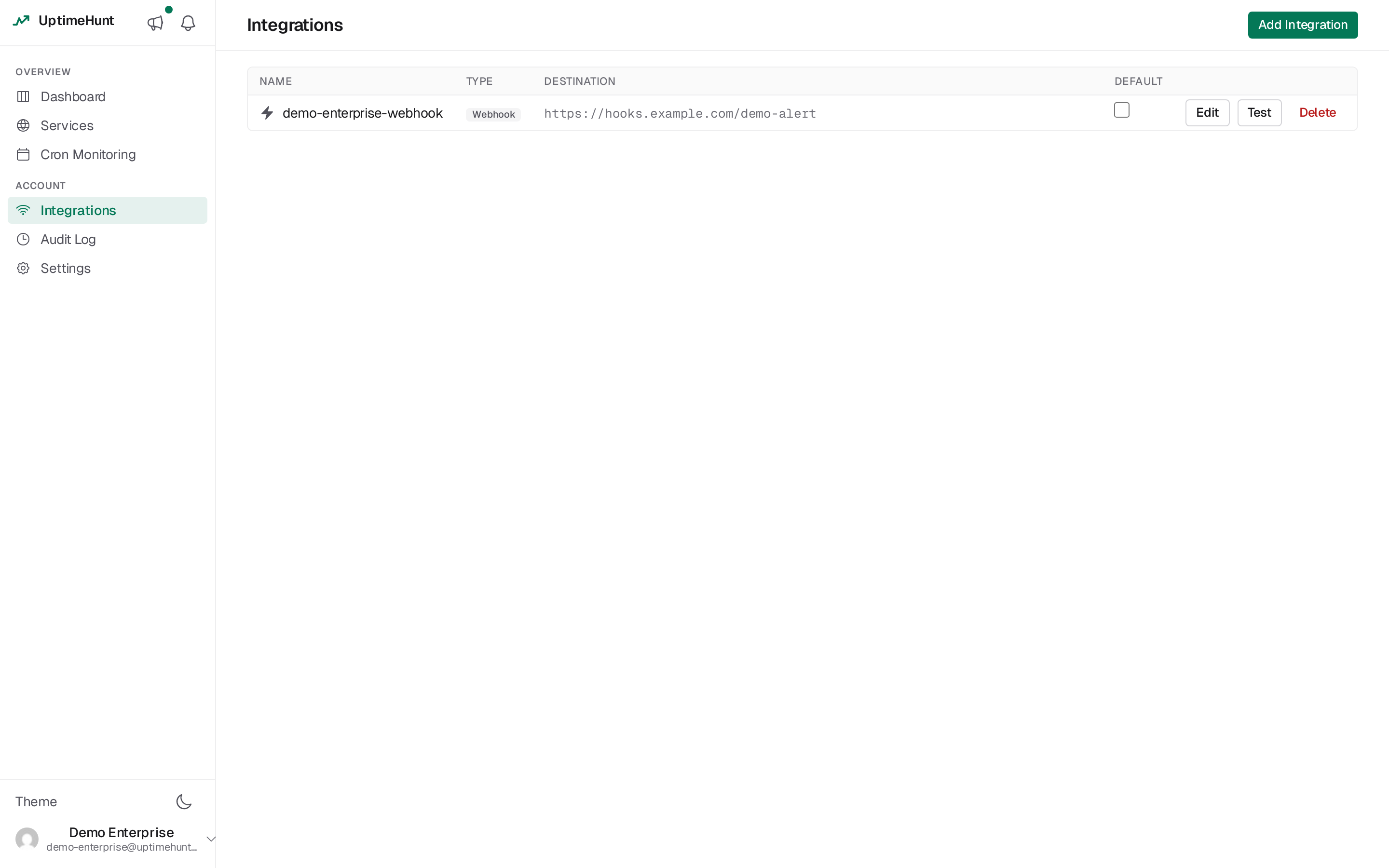
Overview
Integrations connect UptimeHunt to the tools your team uses to receive alerts. When an alert fires for a service, UptimeHunt delivers a notification through each enabled integration. Ten channel types are selectable today — a generic webhook, email, five chat platforms, Pushover push notifications, and two on-call platforms:
| Channel | Mechanism | Stored config | Recovery |
|---|---|---|---|
| Webhook | HTTP POST of the alert payload | Destination URL (+ optional headers) | RECOVERY payload to the same URL |
| HTML email | Recipient address(es) | Recovery email | |
| Slack | Web API chat.postMessage (bot token) | bot_token + channel | Original message edited green in place |
| Discord | Channel webhook | webhook_url | Original message edited green in place |
| Mattermost | Incoming webhook (or bot token, advanced) | webhook_url | Follow-up "recovered" message (bot tier edits in place) |
| Microsoft Teams | Power Automate Workflows webhook (Adaptive Card) | webhook_url | Follow-up recovery card |
| Google Chat | Space incoming webhook | webhook_url | Follow-up card in thread, green button |
| Pushover | Push notifications to user's devices | user_key (required, secret) + device + sound + priority settings + retry/expire | Cancels repeated Emergency messages on recovery |
| PagerDuty | Events API v2 | routing_key | Resolves the PagerDuty incident |
| Opsgenie | Alert API | api_key + region | Closes the Opsgenie alert |
Each integration is created under Settings → Integrations and can be exercised with the Test button before you rely on it.
Coming Soon
Telegram appears in the channel picker as a greyed "Soon" entry and cannot be selected yet — it routes every tenant through one shared platform bot, which needs a BotFather registration that does not exist on this deployment.
Alerts are informational, not on-call
Every channel above is send-only: UptimeHunt has no Acknowledge or Resolve action anywhere, in chat or otherwise. An incident opens and closes automatically based on check results (see Incidents) — there's no manual step to take in UptimeHunt itself. What you get instead is a status reflection: Slack and Discord edit the original alert message in place when the service recovers; Mattermost's webhook tier and Microsoft Teams/Google Chat post a follow-up recovery message; PagerDuty and Opsgenie resolve/close their own native incident or alert. If you need on-call features — assigning, acknowledging, escalating — that's what PagerDuty, Opsgenie, or a dedicated on-call tool are for.
Credential Storage
Every per-integration secret — a bot token, a channel webhook URL, a PagerDuty routing key, an Opsgenie API key — is encrypted at rest (Fernet / AES-128-CBC + HMAC, keyed by the deployment's INTEGRATION_SECRET_KEY) and is never returned in plaintext through the API. You configure the credential once in the UI; UptimeHunt decrypts it only at send time.
Setup by Channel
Every integration follows the same workflow: configure the destination under Settings → Integrations, then click Test to confirm delivery. The per-channel sections below cover the mechanism, the configuration (and where to obtain the credential), the interactive behavior, and recovery behavior.
Webhook
Mechanism. A Webhook integration delivers every alert as a JSON POST to any HTTP(S) endpoint you control, letting you wire UptimeHunt into custom automation, internal tooling, or a third-party service. The JSON body has these fields:
| Field | Type | Description |
|---|---|---|
service | string | The service name |
service_id | number | The service identifier |
type | string | The alert type — one of DOWN, DEGRADED, RECOVERY |
severity | string | The alert severity |
message | string | A human-readable summary of the event |
metadata | object | Engine diagnosis details (e.g. scope, affected_region, affected_isp, failing_probes/total_probes); may be empty |
There is no timestamp or probe-location field — key your receiver on the field names above, in particular type (not alert_type).
Configuration & how to obtain it. No external account is required — you provide the endpoint yourself.
| Field | What it is | How to obtain |
|---|---|---|
| URL | The destination the payload is POSTed to | The URL of an endpoint you control |
| Headers (optional) | Custom HTTP headers added to each call | E.g. an Authorization header issued by the receiving system |
- Go to Settings → Integrations and click Add Integration.
- Choose Webhook, enter the destination URL and any optional headers.
- Click Test to send a sample payload, then Save.
Recovery. The same endpoint receives the matching recovery POST (same body shape, "type": "RECOVERY"). Correlate the recovery to the outage on the service_id in the payload — UptimeHunt does not define a return contract for the generic webhook, so what your endpoint does with the payload is entirely up to you.
Mechanism. An Email integration sends an HTML-formatted alert email from UptimeHunt's own infrastructure to one or more inboxes. The subject is the alert's summary message, optionally preceded by a custom subject prefix you configure (e.g. [ALERT]). The body carries the service name, a one-sentence explanation of the state (Down / Degraded / Recovered), detail rows drawn from the engine diagnosis (scope, probes failing, affected region / ISP, consecutive failures — whichever apply), and a link to the service details.
Configuration & how to obtain it. Nothing to obtain from an external service.
| Field | What it is | How to obtain |
|---|---|---|
| Email addresses | One or more recipients | Your team's inboxes / distribution lists |
- Go to Settings → Integrations and click Add Integration.
- Choose Email, enter one or more recipient email addresses.
- Optionally add a subject prefix (e.g.
[ALERT]). - Click Test to send a sample email, then Save.
Recovery. A recovery email is sent to the same recipients with a green "Service Recovered" subject and body.
Pushover
Mechanism. A Pushover integration delivers alerts as push notifications to registered mobile and desktop devices running the Pushover app. UptimeHunt registers one application token with Pushover; the only secret each integration stores is your personal user key (the Pushover app can be purchased once per platform at a one-time cost of $4.99 USD after a free 30-day trial — the recipient must own the app).
Configuration & how to obtain it. You need a Pushover account (https://pushover.net) and the Pushover app installed on at least one device.
| Field | What it is | How to obtain |
|---|---|---|
| User Key (required) | Your personal Pushover identifier | Log into Pushover, click your username → "Your User Key" (appears at the top) — it is a 30-character code. Delivery-group and subscription keys (obtained the same way) work here too |
| Device (optional) | Comma-separated list of device names to target | Leave blank to notify all of your active devices. To target specific devices, list their names as shown in the Pushover app (e.g. phone,ipad), separated by commas with no spaces |
| Sound (optional) | The notification sound on the receiving device | Choose from the dropdown (defaults to "Device default", which plays your Pushover app's configured tone). Choose "None (silent)" for silent notifications |
| DOWN priority | How to alert when the service is down | Choose from "Lowest" through "Emergency" (defaults to "Normal"). Emergency repeats at your configured interval (default every 60 seconds, minimum 30) until you acknowledge it on the device, and UptimeHunt cancels the repeating notification when the service recovers |
| DEGRADED priority | How to alert when the service is degraded | Choose from "Lowest" through "Emergency" (defaults to "Low — no sound") |
| Retry every (Emergency only) | Minimum seconds between repeated Emergency alerts | Only shown when either priority is set to "Emergency"; must be at least 30 seconds; the default is 60 |
| Stop after (Emergency only) | How long an Emergency alert keeps repeating | Only shown when either priority is set to "Emergency"; cannot exceed 3 hours (10800 seconds); the default is 30 minutes. The repeated alert will stop when this time is reached or when you acknowledge it |
- Go to Settings → Integrations and click Add Integration.
- Choose Pushover and paste your User Key (a 30-character code from your Pushover account).
- Optionally set a Device (comma-separated names like
phone,ipad), a Sound, or adjust the priority levels. - If you choose "Emergency" priority for either alert type, set Retry every (minimum 30s) and Stop after (maximum 3 hours).
- Click Test to send a notification to your devices, then Save.
Recovery. When a service recovers, UptimeHunt always sends a normal-priority "Recovered" notification. If the incident was Emergency priority, UptimeHunt additionally cancels the repeating notification on Pushover's servers at the same time, so your devices stop being repeatedly alerted.
Related Documentation
Import from Crontab
Paste an existing crontab into UptimeHunt to bulk-create cron monitors, then copy back the wrapped crontab lines that ping them.
Configuring Alert Rules
Set up per-service incident detection — how long to wait before an incident opens or closes, and how many failing locations are needed.